Mini Paint
About
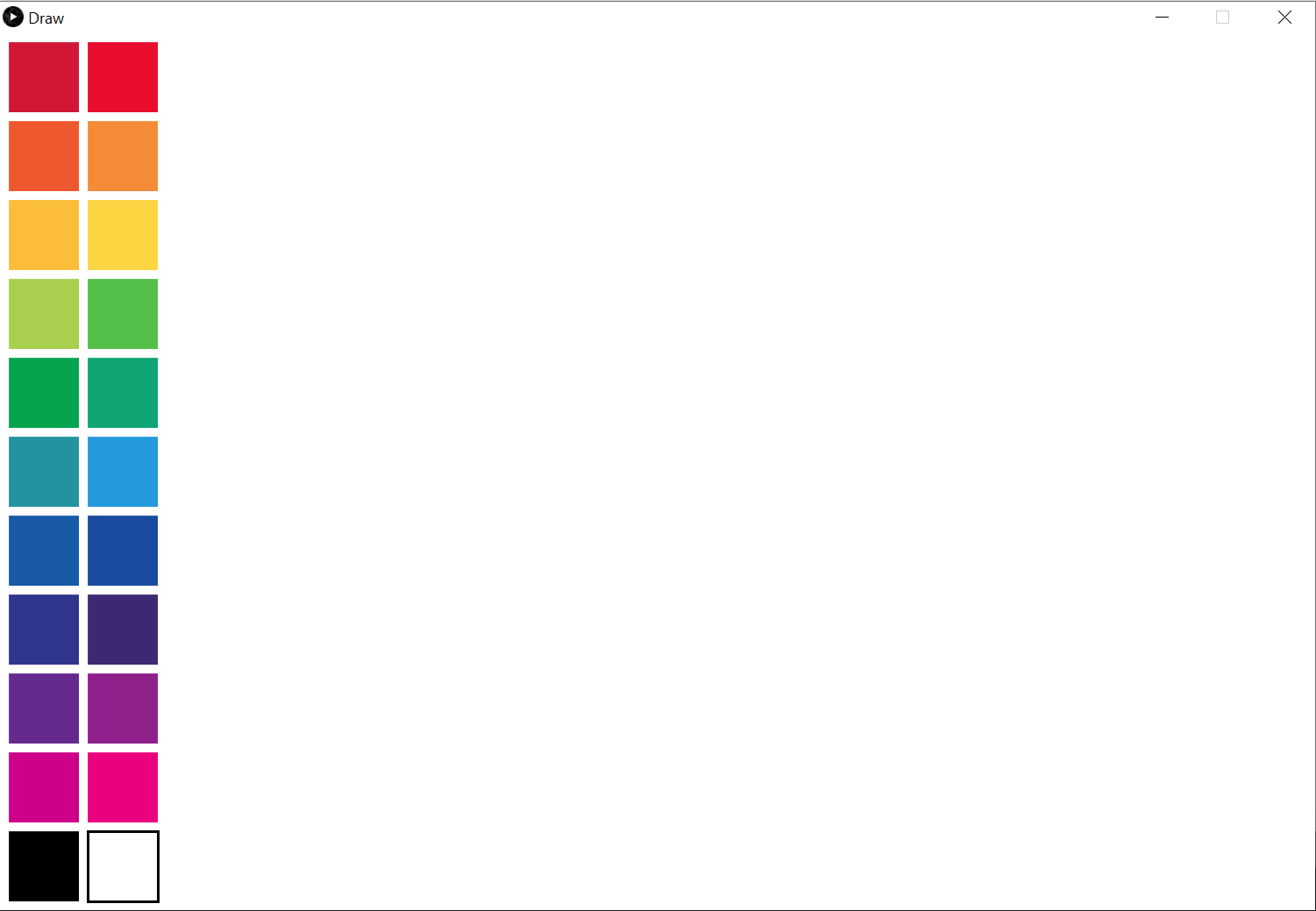
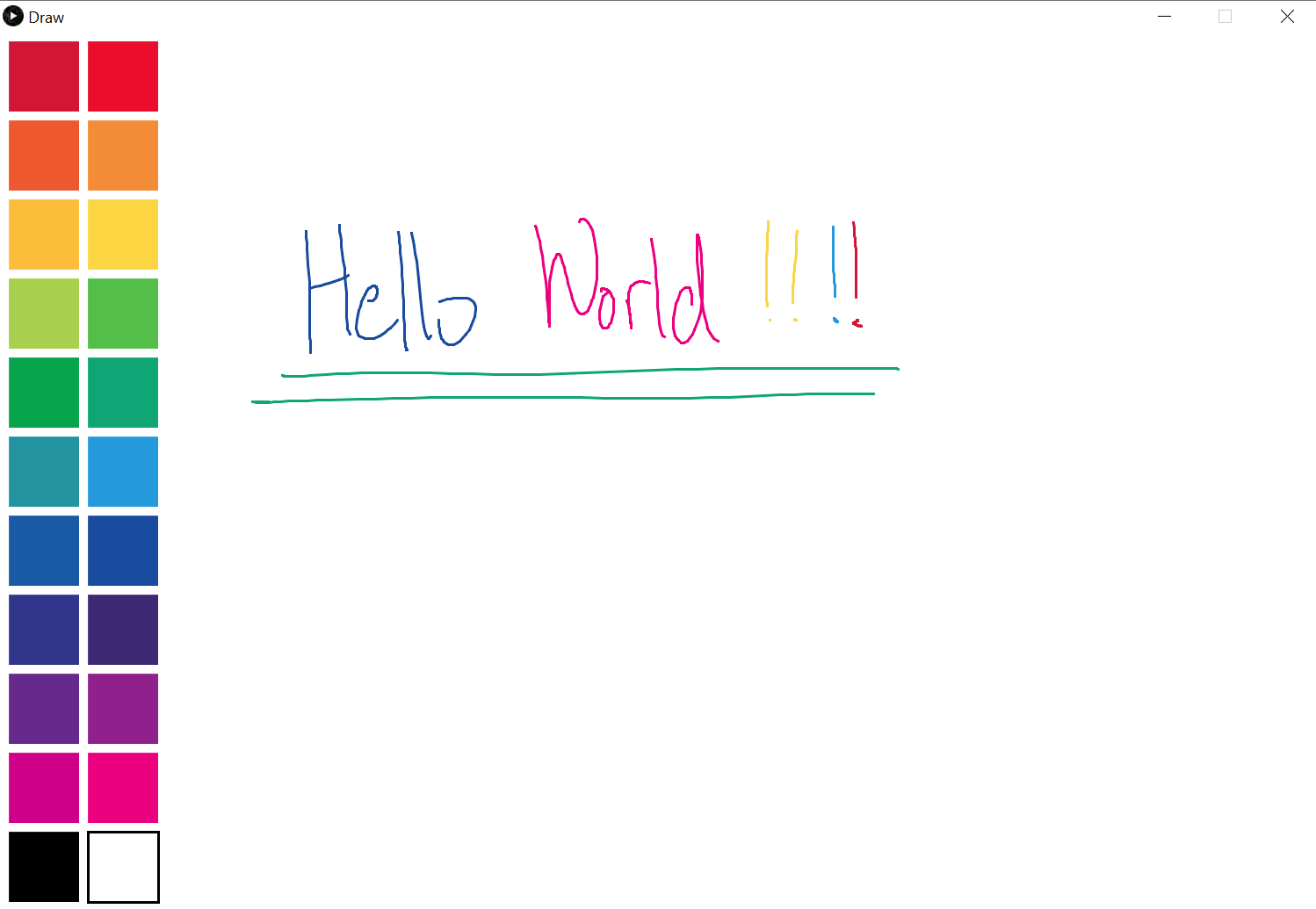
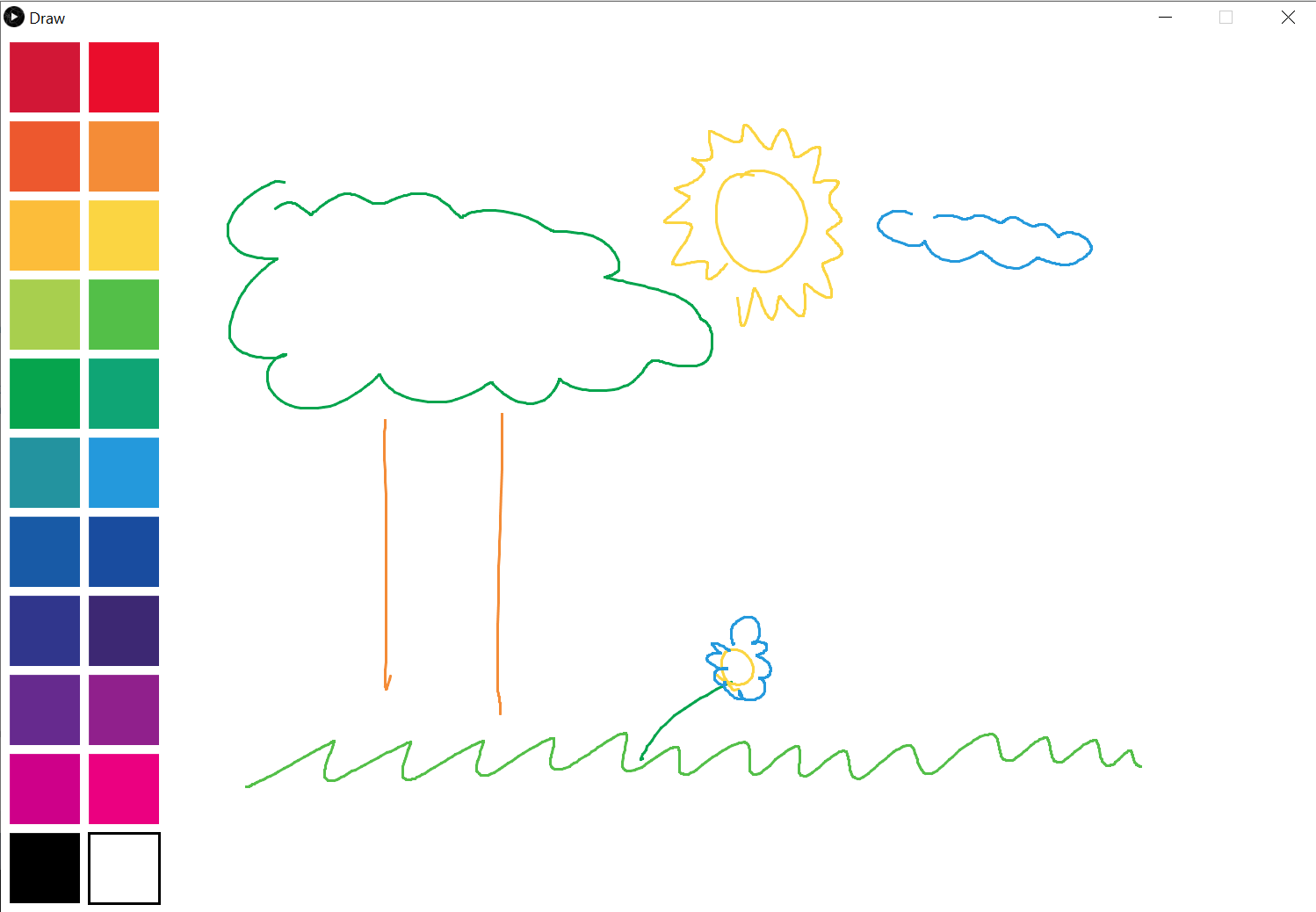
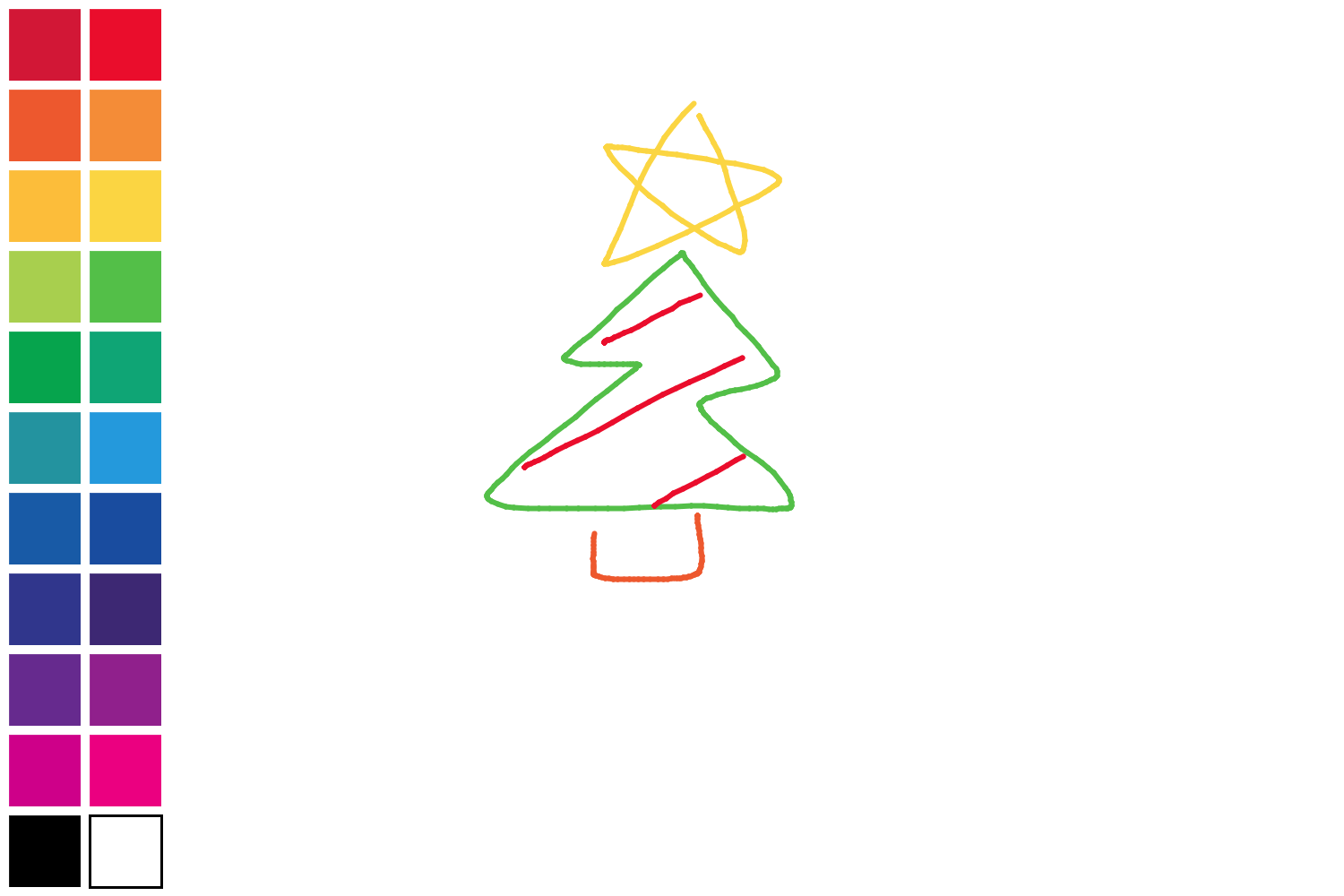
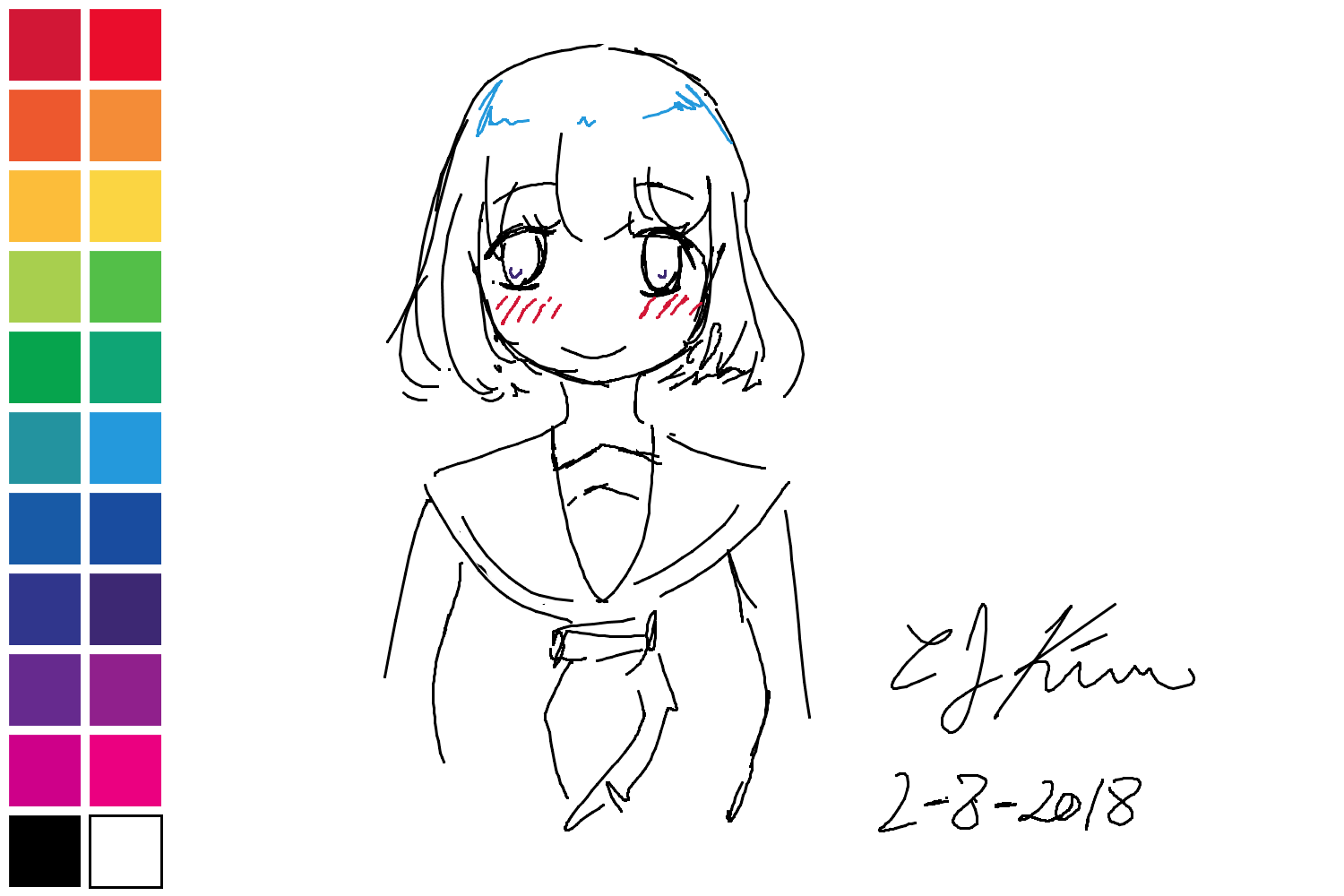
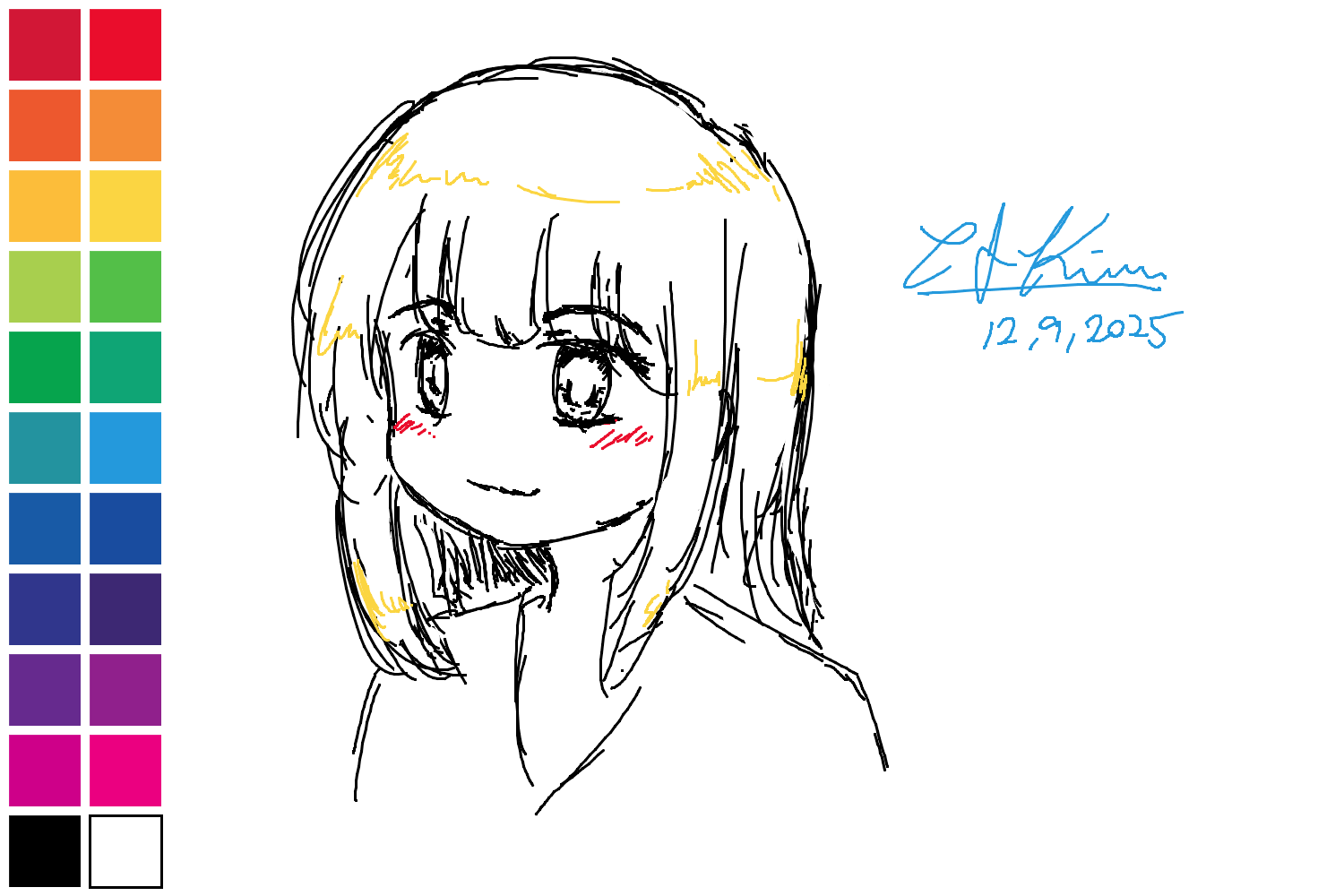
A simple merciless drawing software where you can't rewind your mistakes. You must erase them like real painting. Color options are also limited and so is canvas size. Make the best use of the space.
History
One day, in between classes, I noticed I was doodling on my Surface Pro 3. I thought, 'How hard could it be for me to create my own drawing software?' And that's how the journey of creating this simple mini version of Paint began.
Minor Challenges
Every curve was not really a curve. It's just a bunch of lines connected very closely to make it look like a line.
When the mouse is pressed down, every frame it would connect previous dot with the current dot making a straight line.
Increasing FPS would make the lines look smoother and the curves would be realistic, and lowering would make it choppy.
30 Hz
60 Hz
120 Hz
240 Hz
480 Hz
How to Use
- Pressing "E" key will switch the brush to white color essentially to erase.
- Pressing "S" key will save the current image to Desktop with timestamp.
- Pressing "[" key to decrease brush size and "]" to increase brush size.
- Pressing "ESC" key to clear the entire canvas.
Demo Video
Original Speed
Project information
- Environment Processing 3.3.6 (Java)
- Project date 7 Feb, 2018
- Designer
& Programmer
& QA CJ Kim - Inspired by Paint